Why can’t I see device names before granting permission?
Some browsers hide camera and microphone labels until you approve access. Start the relevant test, then the available device names should appear.
Preview cameras, check live microphone levels, and test left, right, or stereo speaker output.
Workspace
Preview one selected camera.
Watch the live input level.
Check left, right, and stereo channels.
Some browsers hide camera and microphone labels until you approve access. Start the relevant test, then the available device names should appear.
The meter should rise when you speak or make a sound near the selected microphone. A flat meter can indicate the wrong input, muted hardware, or a system input-level setting.
Starting the microphone automatically records a sample of up to 30 seconds. Stop and play it back to check intelligibility, volume, noise, and the selected input.
Left and right tests send a short tone to one stereo channel. Stereo sends sound to both channels, helping you confirm placement and balance.
A persistent status strip remains visible while either device is active. Each panel also shows its active state and provides a Stop button.
Speaker selection is available only in browsers that support output-device switching. You can still play the channel tests through the browser’s current output.
Keep working
 Everyday Utilities
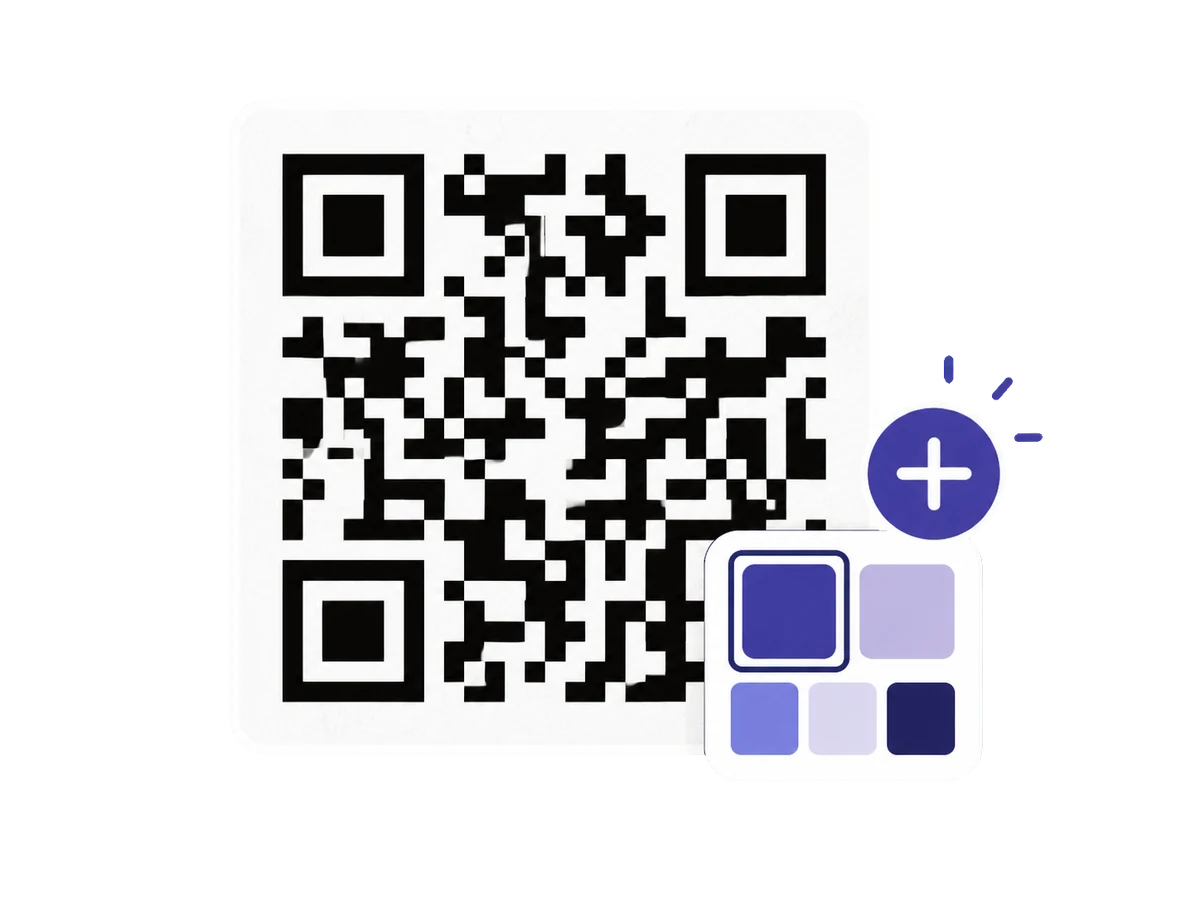
Create QR codes for websites, Wi-Fi, email, phone, SMS, or text with live styling, branding, and contrast guidance.
 Everyday Utilities
Generate unique numbers, custom strings, passwords, list picks, dice rolls, and coin flips with secure randomness.
 Everyday Utilities
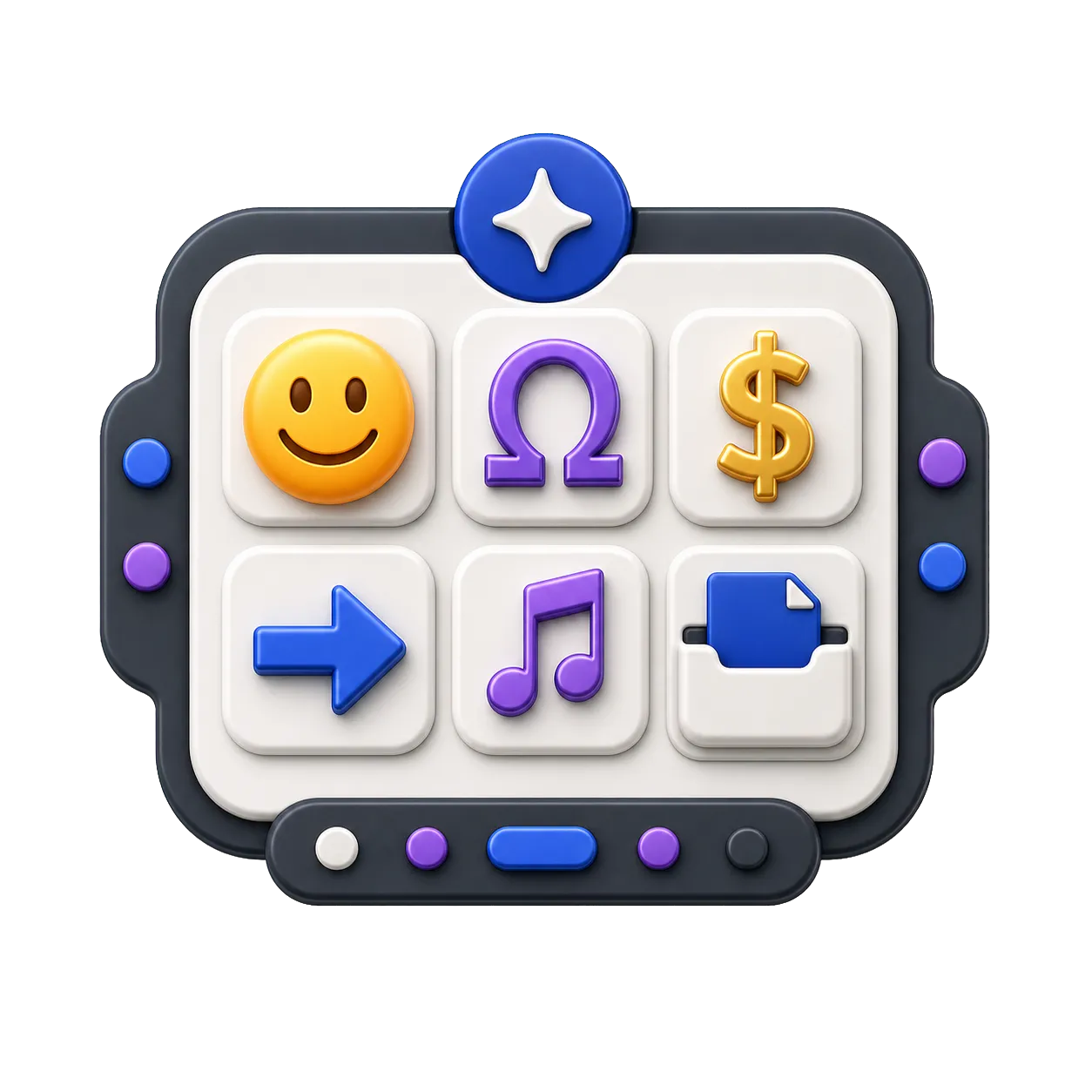
Search emoji and Unicode symbols, inspect code points, build a copy tray, and save favourites.