Will every platform display the whole image?
No. Platform recommendations and interface crops can change, and display varies by device. Treat these presets as practical starting points and keep important content away from the edges.
Preview, crop, and batch-export profiles, posts, thumbnails, stories, and banners.
Workspace
No. Platform recommendations and interface crops can change, and display varies by device. Treat these presets as practical starting points and keep important content away from the edges.
No. Guides appear only in the live preview. Profile presets use a common circular-crop guide, while other presets use a general 80% inset that is not a platform guarantee.
Choose Fit entire image to avoid cropping. PNG and WebP can preserve transparent source pixels and leave unused padding transparent; JPEG always uses the selected background colour.
Select any combination of presets. One output downloads directly, while two or more outputs are placed in an ordered ZIP with a descriptive filename for every size.
No. Browser canvas export normally removes EXIF and most other metadata, and embedded colour profiles may not be reproduced exactly. The pixels are processed on your device.
Keep working
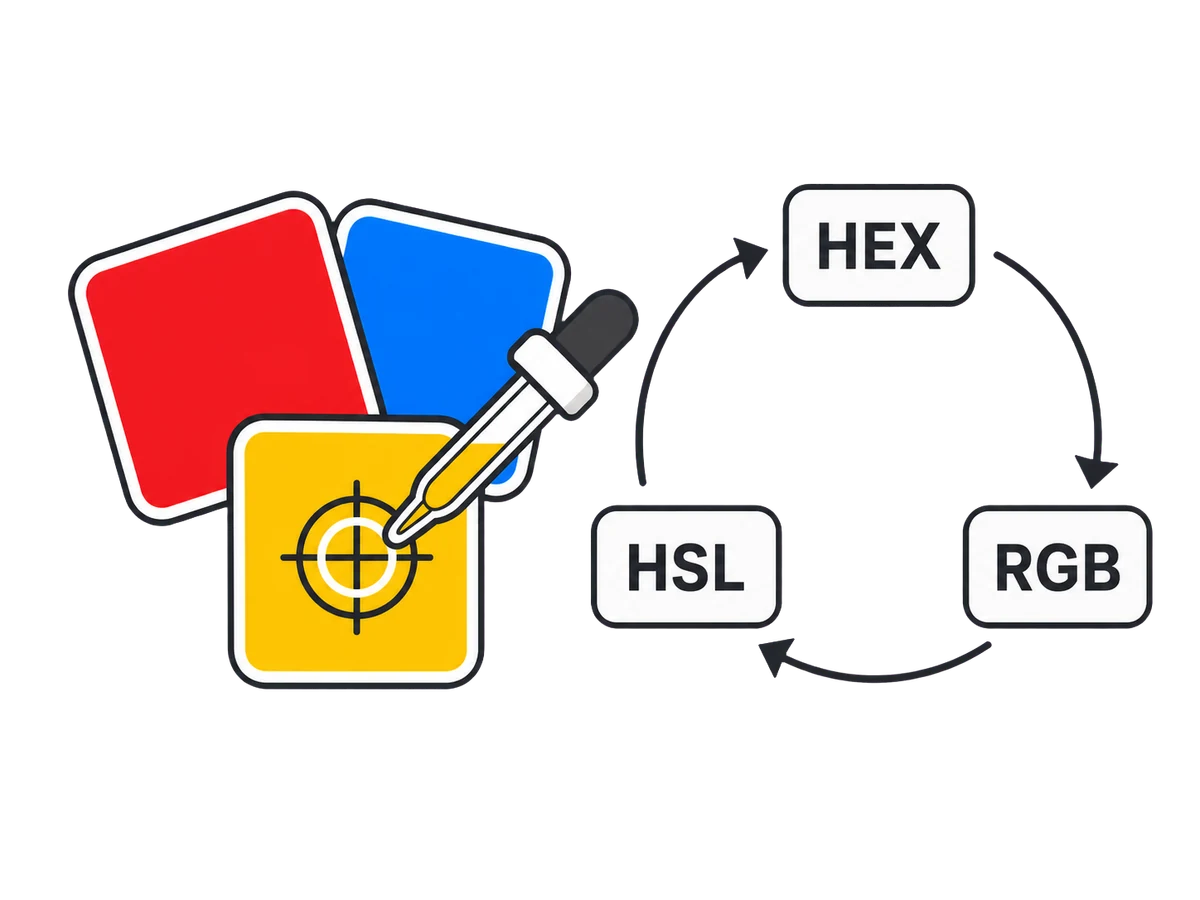 Images & Video
Pick opaque or transparent colours, repair contrast, and export tints or hue harmonies.
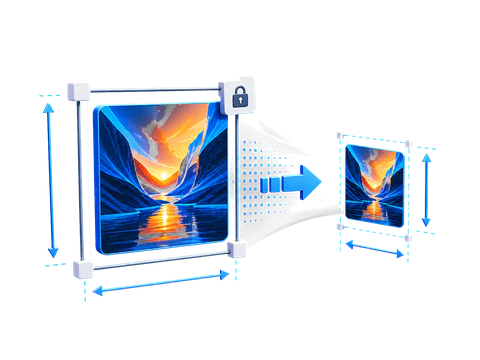 Images & Video
Resize, fit, crop, or pad images with exact dimensions, scale shortcuts, and safe output limits.
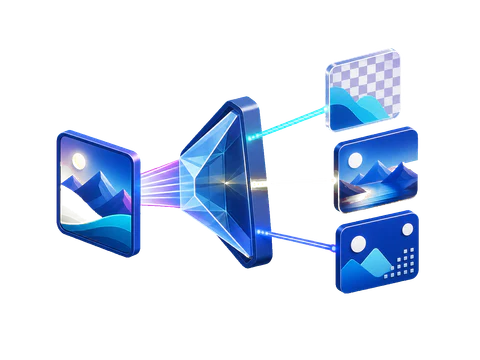 Images & Video
Convert PNG, JPEG, WebP, HEIC, or HEIF images into PNG, JPEG, or WebP with live estimates.